Google Play Android Vitals Guide: How ANRs & Crashes Reject Production Access (2026)
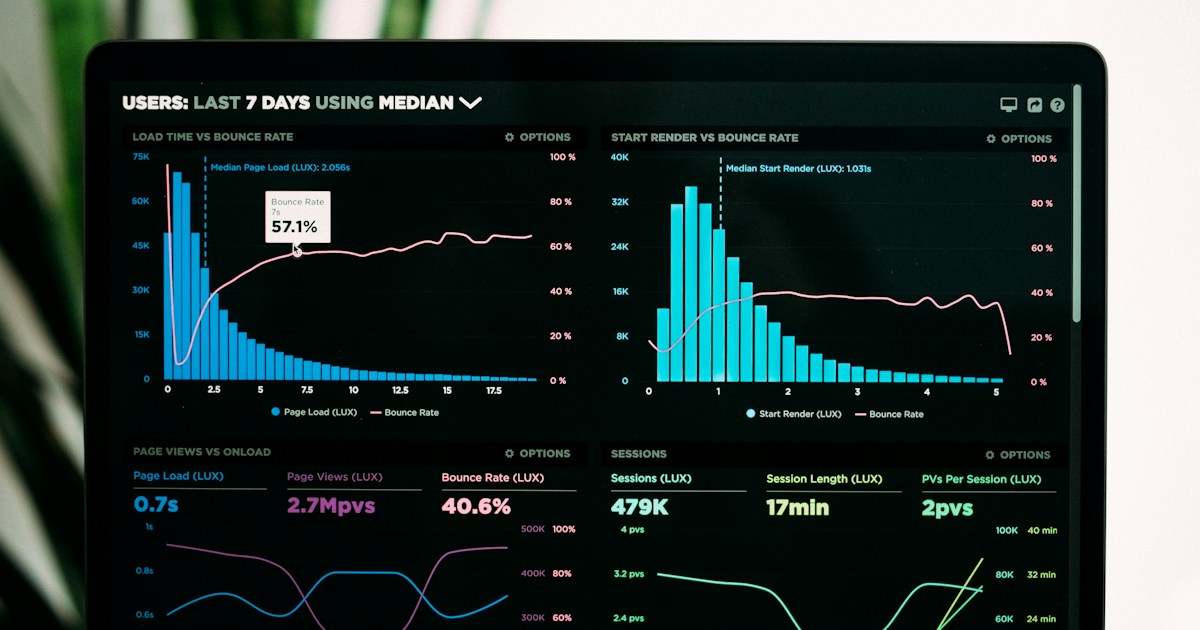

Mastering Android Vitals performance metrics for 100% Google Play Production Access approval
Completing 14 continuous days of Closed Testing with 12 manual testers is an essential requirement for Google Play Production Access. However, many developers who complete the 14 days still find their application review rejected due to hidden issues flagged in Google Play Console → Quality → Android Vitals.
Google's automated review systems analyze Vitals metrics collected from your testers' active devices during the 14-day testing window. If your app exceeds Google's 'Bad Behavior Thresholds,' your Production Access application will be automatically flagged and rejected.
1. Understanding Google's Bad Behavior Thresholds
Google Play enforces two critical performance benchmarks across all active release tracks:
- ANR Rate (User-perceived ANR): Must remain strictly below 0.47% across all user sessions.
- Crash Rate (User-perceived Crash): Must remain strictly below 1.09% across all active devices.
- Per-Device Model Thresholds: If an ANR or crash occurs on >8% of a specific phone model (e.g. Samsung Galaxy A12), Google flags the app for device-specific instability.
2. What Triggers ANRs (Application Not Responding)?
An ANR dialog is displayed to the user whenever your application's UI thread (Main Looper Thread) is blocked for longer than 5 seconds. Common root causes include:
- Synchronous Network Requests: Performing HTTP API calls or file downloads directly on the main thread.
- Heavy Disk I/O: Reading/writing large SQLite databases or Shared Preferences synchronously inside onCreate().
- Lock Contention & Deadlocks: Thread synchronization wait calls blocking UI event dispatchers.
- Slow BroadcastReceivers: Executing long operations inside onReceive() without using goAsync().
3. How to Identify & Fix ANR Stack Traces
In Google Play Console → Quality → Android Vitals → ANRs & Crashes, inspect the stack trace logs collected from your Closed Testing testers. Look for lines pointing to your app's package name:
at com.example.myapp.MainActivity.loadInitialData(MainActivity.kt:42) — Thread state: TIMED_WAITING
Fix Pattern: Move heavy data fetching, JSON parsing, or database queries to background Coroutines or Worker Threads:
CoroutineScope(Dispatchers.IO).launch { val data = fetchApiData(); withContext(Dispatchers.Main) { updateUi(data) } }
4. Fixing Unhandled Exceptions & Crash Spikes
Uncaught exceptions (such as NullPointerException, IndexOutOfBoundsException, or OutOfMemoryError) crash the Android runtime instantly. Integrate Firebase Crashlytics to receive real-time stack traces whenever a tester encounters a crash during their 14-day testing period.
5. Best Practices Before Submitting for Production Access
- Verify Android Vitals Dashboard: Confirm 0 ANRs and 0 Crash events over the final 7 days of closed testing.
- Test on Low-End Hardware: Test on physical 2GB RAM devices to detect memory leaks early.
- Deploy Fix Builds Incrementally: Always increment versionCode and publish bug-fix updates to Closed Testing whenever a crash is discovered.
CloseTesting Engineering Team
Official guide by the CloseTesting editorial team. Helping Android developers meet Google Play requirements with 12 real testers for 14 continuous days.
Learn more about CloseTesting →Need 12 Real Testers for Your Android App?
Get 12 verified human testers on real Android devices. Pass the 14-day testing requirement on your first attempt with daily active tracking and zero risk.